Coding kits
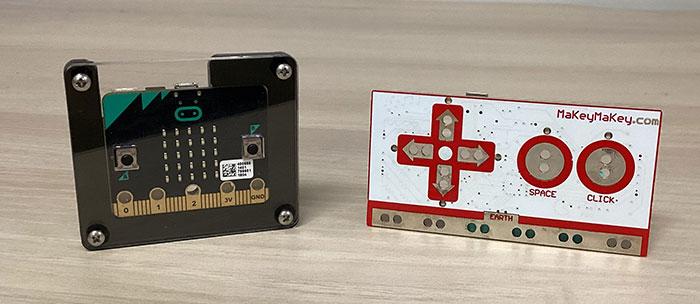
The Port Moody Public Library has two kinds of coding kits to borrow: Makey Makey and Micro:bit. Each of these kits lets you use coding languages to create programs, games, and other software to use in the real world.
How do I borrow a coding kit?
You can check out a coding kit with your library card from our Accounts Desk.
Borrowing guidelines are:
- Loan period: 21 days
- No renewals
Want a kit but none are available? Place a hold on a Makey Makey kit or place a hold on a Micro:bit kit through the online catalogue.
How do I return a coding kit?
Please return your coding kit directly to the Accounts Desk. Do not attempt to return the kits in the book drop.
Check to make sure you have all the parts in the container before returning it.
A Makey Makey kit should include:
- 1 Makey Makey Circuit Board
- 1 USB Cable
- 8 Alligator Clips
A Micro:bit kit should include:
- 1 Micro:bit board in a protective case
- 1 battery pack
- 2 AAA batteries (if the batteries are dead please let the Accounts desk know when you return the kit)
- 1 USB Cable
Makey Makey Kits
The Library has 12 Makey Makey kits available for loan. These kits were made available through a generous grant from the Port Moody Foundation.
Makey Makey is a circuit board that lets you use real life objects, in place of your computer keyboard or mouse, to provide input to your computer. For example, to make a character jump in a game, instead of pressing the “space” key, you can press an apple instead!
A Makey Makey kit is most commonly used with games and animations built with Scratch, a block-based coding language.
How to use a Makey Makey
Watch this video to learn how to set up the Makey Makey kit with your computer:
More ideas
Try these project ideas from the Makey Makey site, including:
- Banana piano
- Code an interactive story
- Make a cardboard guitar
- Make a toilet paper roll tilt sensor controller
Remix Scratch projects the Library has created to be used with the Makey Makey
Check out these other resources
Micro:bit kits
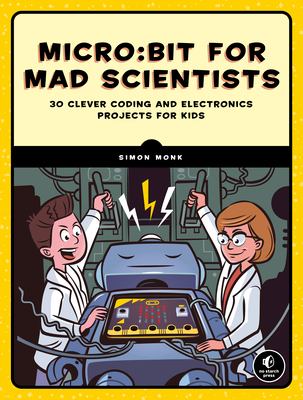
The BBC micro:bit is a handheld computer that shows you how software and hardware work together. The Micro:bit has 16 LED lights, buttons, sensors and input/output features that let it interact with things in your surroundings.
How to use a Micro:bit
Follow this step by step guide to setup your Micro:bit
Try the project ideas in different categories of learning on the Micro:bit website, including:
Use your Micro:bit with Scratch projects
Learn to code with the Library
The Library has different resources to help you learn how to code:
- See our programs and events calendar for our current beginner and intermediate level coding workshops.
- Search our online catalogue for coding books or check out our Coding Booklist below
- Take online video courses through LinkedIn Learning to learn Scratch, other coding languages with step-by-step tutorials.
- Watch our Byte-Sized Coding Time tutorials on our YouTube Channel.